
Installation of the SENS motion® smartphone app
Background#
Each SENS motion sensor needs a smartphone app to communicate with the underlying system. This includes turning a sensor on and off, as well as pulling data out of the sensor.
The app is designed to be installed both on a device the healthcare professional uses or on the patient’s own phone.
Installation on iOS#
The SENS motion app can be downloaded by searching for “SENS motion” in the App Store.
Note that Bluetooth must be turned on on your phone and location services must be accepted the first time the app is opened.
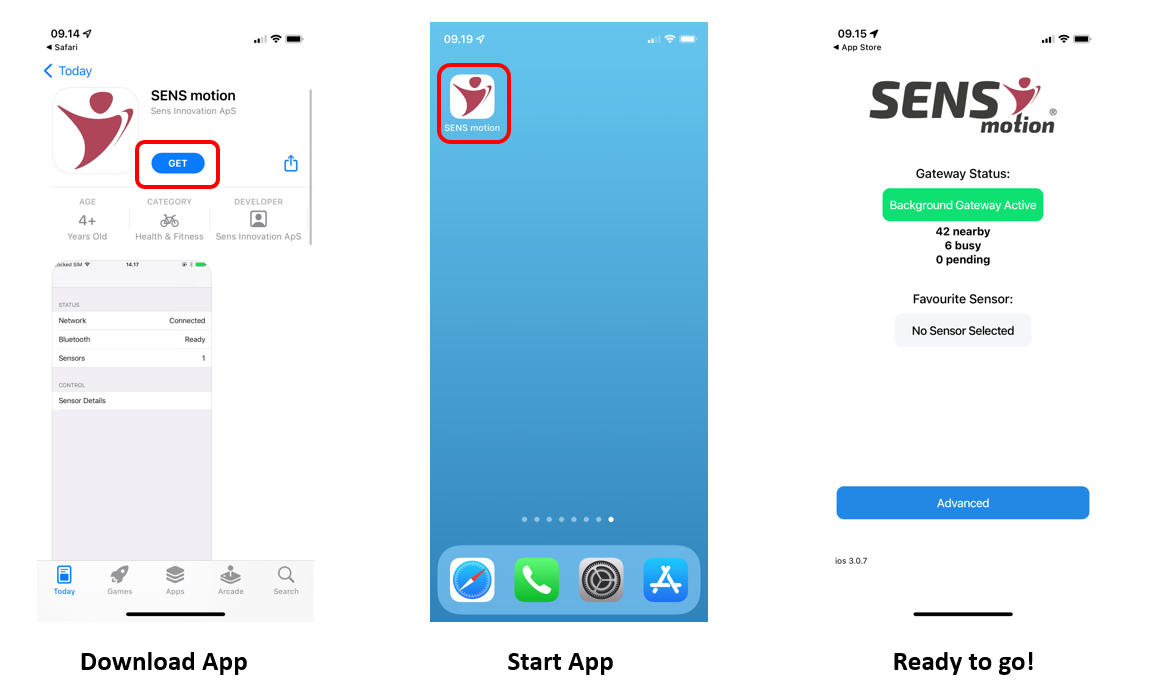
If Bluetooth and/or location services are not turned on, the Gateway Status on the main screen will be marked yellow and not green. You can see the number of sensors nearby under “Nearby”.
The transfer of data from sensors is now automatic as long as the app is visible on the device.
Pressing the “ADVANCED” button will display a list of nearby sensors. A favorite sensor can then be selected, the status of which will always be displayed on the front page. See here how to add a favorite sensor.
Installation on Android#
The SENS motion app can be downloaded by searching for “SENS motion” in Google Play.
Note that Bluetooth must be turned on on your phone and location services must be accepted the first time the app is opened.
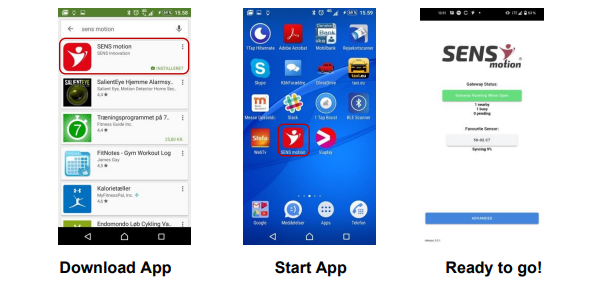
If Bluetooth and/or location services are not turned on, the Gateway Status on the main screen will be marked yellow and not green. You can see the number of sensors nearby under “Nearby”.
The transfer of data from sensors is now automatic as long as the app is visible on the device.
Pressing the “ADVANCED” button will display a list of nearby sensors. A favorite sensor can then be selected, the status of which will always be displayed on the front page. See here how to add a favorite sensor.