
Edit participant
Background#
“Participant” refers to the person wearing the SENS motion sensor. You can change a participant’s information, measurement period and sensor at any time.
To create a new participant, see the article Add a participant.
How to edit a participant#
Click Projects in the top menu, and click Participants on the project’s row.
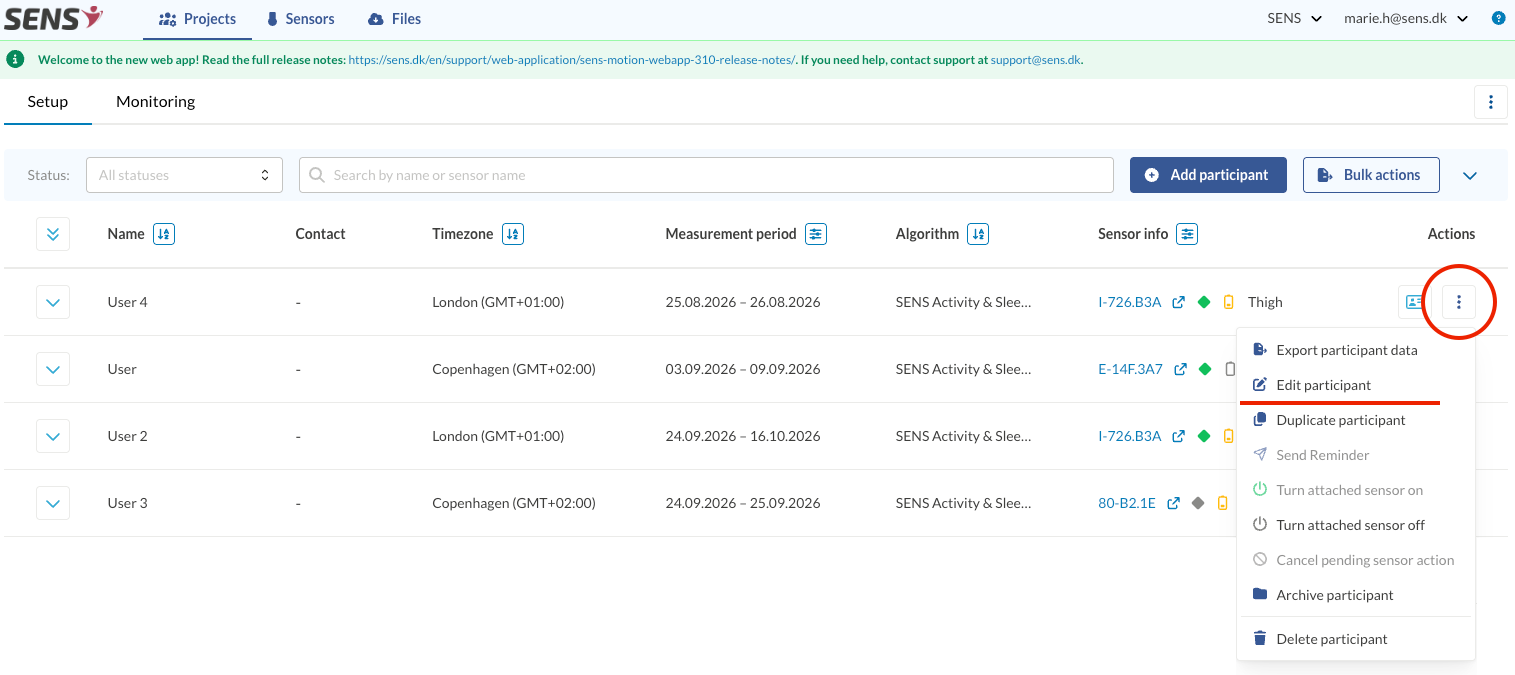
Click the menu (the three dots) under Actions on the participant’s row, and select Edit participant.
- Change the information in the Edit Participant form, and click Save.
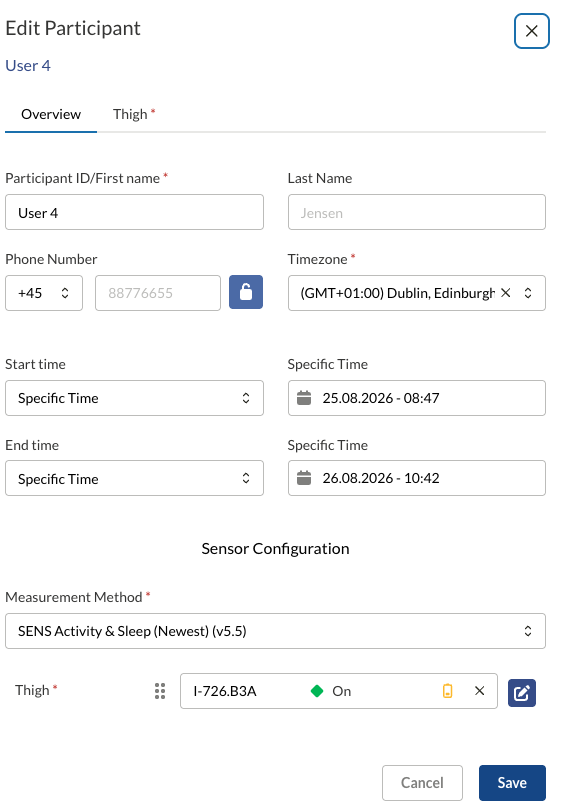
Fields marked with a red star (*) are required.
- Participant ID/First name — enter a participant ID or first name. The participant name does not have to contain personal information, but can be an anonymous ID.
- Last Name and Phone Number — optional.
- Timezone — the timezone the participant wore the sensor in.
- Start time and End time — the period to be measured. See Measurement period below.
Under Sensor Configuration:
- Measurement Method — the algorithm used to analyse the data. If you wish to use other algorithms or a dual sensor solution, please contact SENS.
- Thigh — the sensor the participant wears on the thigh. Click × to remove the sensor, or the blue edit button to choose another sensor from the sensor list. The sensor list is described in Add a participant.
If a sensor’s battery has run out during a measurement, or a sensor is lost during the measurement period, you must create a new participant and assign a new sensor. The data from the two sensors can then be combined during data processing.
If you wish to have multiple measurements from different sensors connected to the same participant, you need another set-up. Kindly contact support for further information.
Measurement period#
The start and end time set the period to be measured. The period can always be adjusted, and changing the measurement period does not affect the stored data.
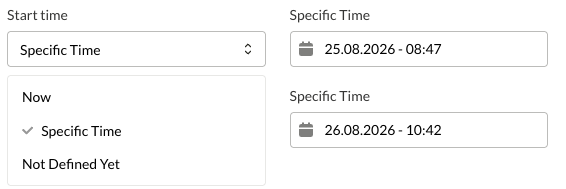
There are 3 options for the start time:
| Option | Description |
|---|---|
| Now | The measurement period starts now. |
| Specific Time | Set a specific start or end time. You must select both a date and a time in the field to the right. |
| Not Defined Yet | The measurement period is not yet known. In this case it is important to return to the participant and set the measurement period later. |
For the end time, you can also choose Specify Duration and enter how many days the measurement is expected to last. If the measurement ends earlier or later than planned, you must correct the end time afterwards, so the measurement period matches the actual measurement.
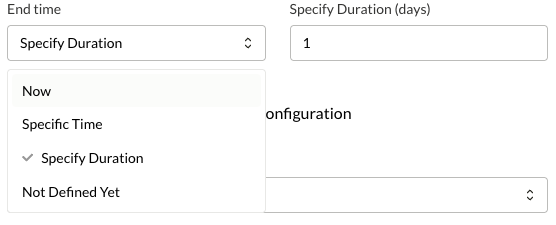
Note that you cannot set an end time if Not Defined Yet is selected as the start time.
How to edit several participants at once#
You can change the timezone, measurement method and measurement period for several participants at once.
Click Bulk actions in the participants overview. A checkbox now appears in front of each participant.
Mark the participants you want to change, and click Edit selected.
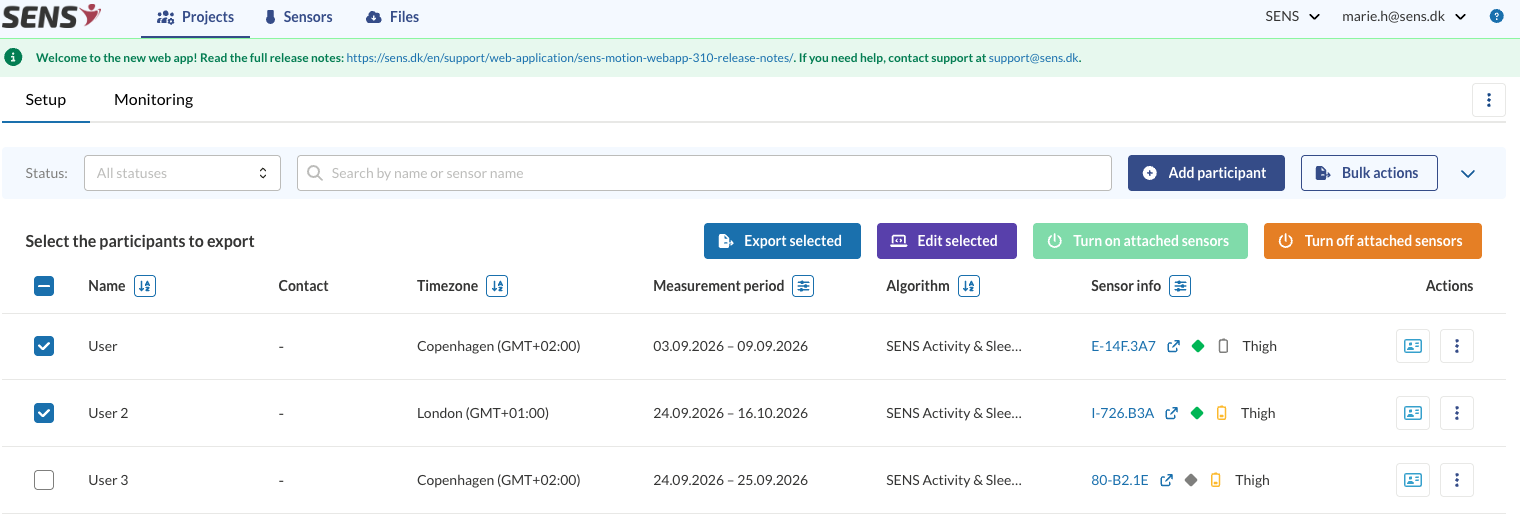
- Mark the fields you want to change, and choose the new values. Only the fields you mark will be updated. All other information stays unchanged for each participant.
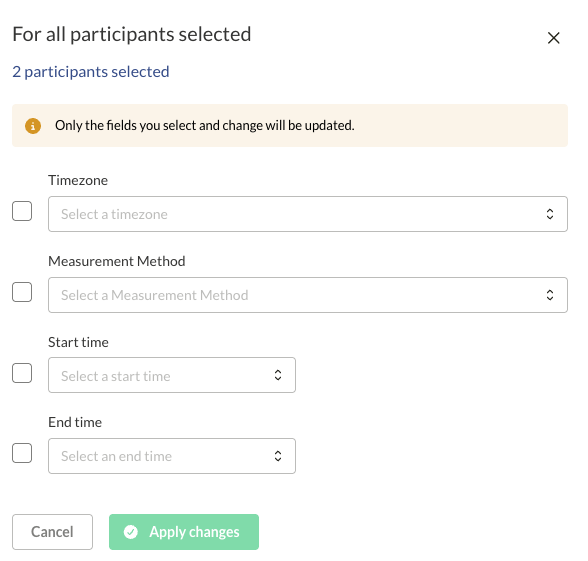
- Click Apply changes.
How to delete a participant#
Click the menu (the three dots) under Actions on the participant’s row, and select Delete participant at the bottom of the menu.