
SENS motion® Webapp 3.9 - Release Notes
What’s New in 3.9#
- Reorganised Navigation – Three main sections (Workspace, Sensors, Files) for easier access to key features
- Enhanced Breadcrumbs – Quick navigation between project and participant views
- Improved Sensor Overview – Battery level info, sensor state, pending actions, and bulk operations
- Battery Lifetime Estimation – See estimated days remaining for each sensor battery
- Streamlined File Export – Export multiple files without closing the menu
- Expandable Participant Tables – View detailed information without leaving the table
- Memory Status Indicators – Quickly identify sensors with memory issues
- ActiMotus 2.1 Algorithm Support – Multi-sensor measurements and enhanced diary features
- Participant Details Enhancements – New Steps section added
- Security Improvements – Stricter password policies and enhanced two-factor authentication
- Expanded Country Support – More countries available for selection
- Streamlined UI – Overall interface improvements for better usability
Reorganised Main Navigation Sections#
New Feature: We’ve reorganised the main navigation to make it easier to find what you need.
Three dedicated sections make up the main navigation:
- Workspace – Manage your projects and participants all in one place
- Sensors – View and manage all your sensors with enhanced battery and status information
- Files – Monitor and download your exported files

What you need to know: These sections replace the previous navigation structure and provide a more intuitive way to access your most-used features. You’ll find all project and participant management tools in Workspace, sensor monitoring in Sensors, and file exports in Files. Additionally, the change organisation menu is now located directly in the header, next to profile settings, making it quicker to switch between organisations.
Enhanced Navigation with Breadcrumbs#
New Feature: Breadcrumb navigation has been added throughout the application to help you understand where you are and quickly navigate between related views.

What you need to know: When viewing project or participant details, you’ll see breadcrumbs at the top showing your current location. You can click on any breadcrumb to jump directly to that section—for example, from a participant’s detail page back to the participant overview or project list. This makes it much faster to navigate between related pages without using the back button.
How to use it: Simply click on any item in the breadcrumb trail to navigate to that level. The breadcrumbs automatically update based on your current location.
Sensor Overview Improvements#

Battery Level Information#
New Feature: The sensor overview now displays comprehensive battery information to help you monitor sensor lifetime.
Each sensor now shows:
- Battery voltage – The current voltage reading from the sensor (when hovering over the icon)
- Estimated days left – A calculation of how many days of battery life remain based on the sensor’s runtime and battery
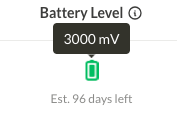
What you need to know: The estimated days left is calculated based on how long the sensor has been active and its current battery voltage. This helps you plan ahead for sensor replacements and ensures you don’t lose data due to depleted batteries.
How to use it: Look for the battery icon and information under each sensor in the Sensors section. The estimated days left will help you identify sensors that need attention soon. To see battery voltage, hover the mouse cursor over the battery icon.
Sensor State and Pending Actions#
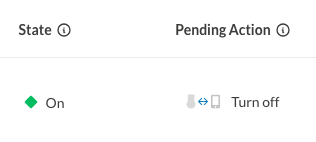
New Feature: The sensor overview now clearly displays both the current sensor state and any pending actions.
What you need to know:
- Sensor State shows what the sensor is currently doing (on, off, etc.) based on the last time it connected to the mobile app
- Pending Action shows any requested action (like “turn on” or “turn off”) that is waiting for the sensor to connect to the mobile app
This dual display helps you understand both the current status and what will happen next when the sensor syncs.
How to use it: Check the sensor state column to see current status, and the pending action column to see what’s queued. Pending actions will be completed automatically when the sensor connects to the SENS motion mobile app.
Improved Sensor Action Accessibility#
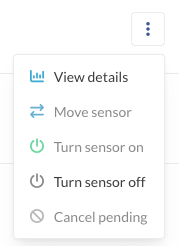
New Feature: Turning sensors on and off is now more easily accessible from the sensor overview page, and pending actions are now explicitly displayed.
What you need to know: Sensor on/off actions are now available directly from the actions dropdown in the sensor overview table, making them quicker to access.
How to use it: Use the actions dropdown (three dots) in the sensor overview table to turn sensors on or off. After initiating an action, you’ll see it displayed in the “Pending Action” column. The action will be completed automatically when the sensor connects to the SENS motion mobile app. You can cancel pending actions from the actions dropdown if needed.
Bulk Actions#
New Feature: Bulk actions are now available at the top of the sensor overview, making it easy to manage multiple sensors at once.
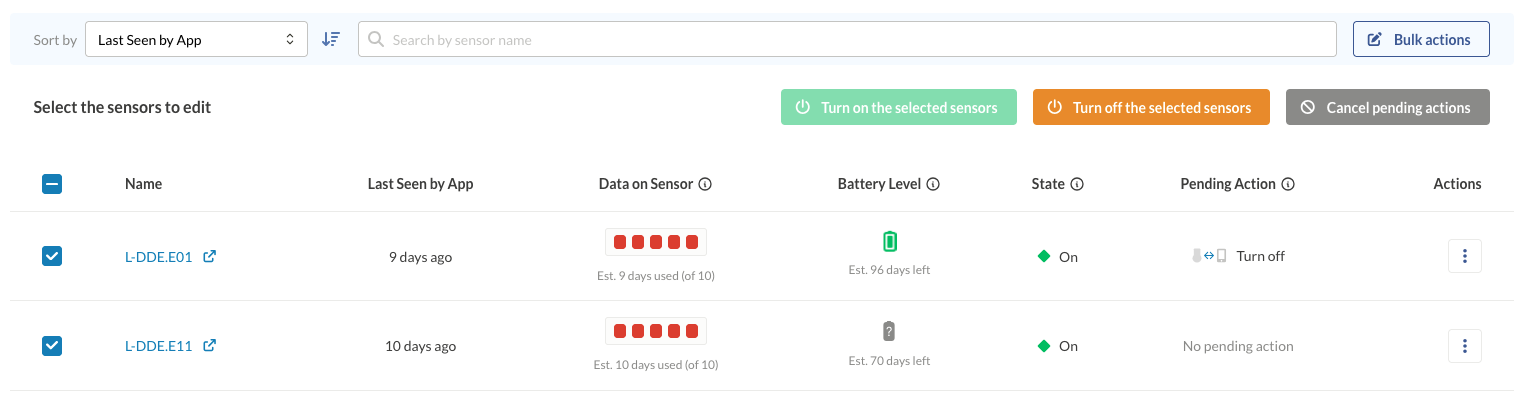
What you need to know: You can now select multiple sensors and perform actions on all of them simultaneously:
- Turn multiple sensors on or off
- Cancel pending actions for multiple sensors
How to use it: Click the “Bulk Edit” button in the toolbar at the top of the Sensors page. Select the sensors you want to modify, then choose your action from the bulk actions toolbar that appears.
Battery Lifetime Estimation#
New Feature: The system now calculates and displays estimated battery lifetime for each sensor.
What you need to know: The estimated battery lifetime shows how many days are left before the sensor’s battery is expected to run out. This calculation is based on:
- How long the sensor has been active
- The current battery voltage
- Expected battery consumption patterns
Sensor batteries are typically supported for 120 days. After this period, sensors may stop working at any moment.
How to use it: Monitor the “Est. X days left” indicator in the sensor overview. When this number gets low (especially below 10 days), do not use the sensor for any measurements meant to run for longer.
Improved File Export Workflow#
New Feature: The file export process has been streamlined to make it easier to export multiple files without navigating back and forth.

What you need to know: When you send a file to export, the export menu no longer closes automatically. Instead, a helpful success popup appears with a direct link to the Files Overview page. This means you can:
- Export multiple files for the same participant in quick succession
- Continue working in the export menu without interruption
- Click the link in the popup to go directly to your Files Overview when ready
How to use it: After selecting your export options and clicking export, you’ll see a success notification with a “Files Overview” link. Click it to view your queued files, or continue exporting more files—the menu stays open for your convenience.
Project Management Improvements#

User-Created Projects#
New Feature: Users can now create new projects directly within the Workspace, removing the need for administrative setup.
What you need to know: This update makes it significantly easier to manage larger studies, onboarding new cohorts, or running multiple project streams at once. Previously, project creation required assistance from administrators or support. With this release, any authorised user can set up projects independently.
How to use it: Navigate to the Workspace section and click Add Project. From there, you can enter project details, assign participants, and configure settings as needed. Permissions continue to follow organisational roles to ensure project creation remains secure and controlled.
Participant Table Enhancements#
Expandable Rows#
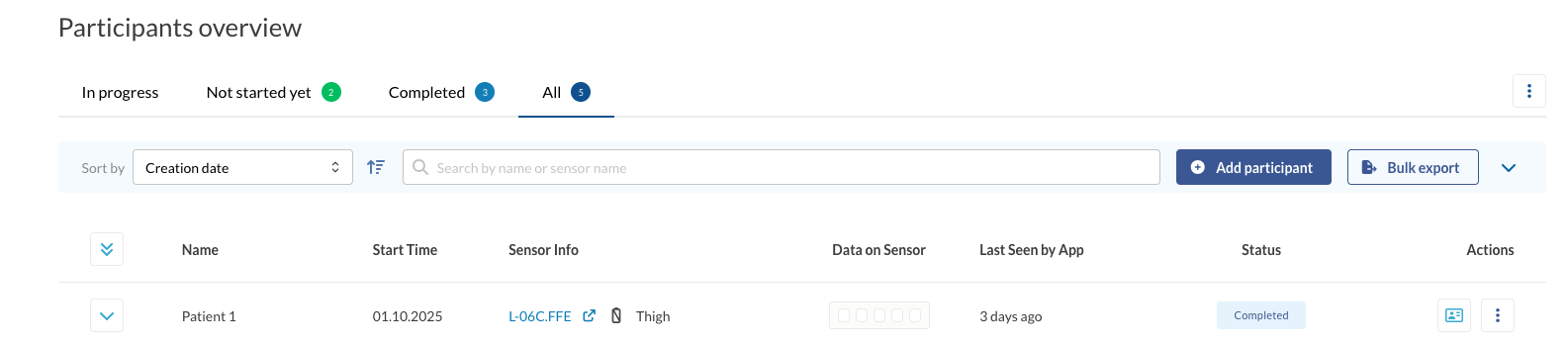
New Feature: Participant table rows can now be expanded to reveal additional information without navigating to a separate details page.
What you need to know: Each participant row can be expanded to show:
- Additional participant information
- Measurement details
- Sensor information
- Status messages
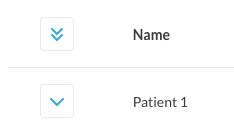
You can expand individual rows by clicking the expand icon, or use the “Expand All” button in the table header to expand all rows at once for a comprehensive view.
How to use it: Look for the expand/collapse icon (chevron) in the first column of the participant table. Click it to expand that row, or click the icon in the header to expand or collapse all rows simultaneously.
Memory Status Indicator#
New Feature: A new memory status column has been added to the participant table to help you quickly identify sensors with memory issues.
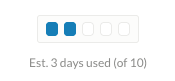
What you need to know: The memory status shows the estimated amount of data stored on the sensor. When this starts to get full, the sensor needs to connect with the SENS motion mobile app for a while to synchronise data and free up space.
How to use it: Check the memory status column in the participant table. If you see a sensor approaching full capacity, you can:
- Identify which participants need to sync their sensors
- Resolve sync issues before data is lost
- Quickly spot missing data that may be due to memory constraints
The status is displayed as “Est. X used (of 10)” to give you a clear picture of memory utilisation.
Measurement Start Date Filter#

New Feature: You can now filter participants by measurement start date, making it easier to find and manage participants who started on the same day.
What you need to know: The measurement start date filter allows you to quickly identify and group participants based on when their measurements began. This is particularly useful for:
- Managing cohorts of participants who started together
- Tracking progress for participants who began on specific dates
- Organising participants by measurement start timeline
How to use it: Click the Expand button on the right top of the participant overview toolbar. Use the date filter to select a specific measurement start date. The table will automatically update to show only participants whose measurements started on that date, making it easy to find and manage participants who started on the same day.
ActiMotus Support#
New Feature: Enhanced support for ActiMotus algorithm and project-specific questionnaires.
ActiMotus 2.1 Algorithm Support#
New Feature: The system now supports the ActiMotus 2.1 algorithm, enabling multi-sensor measurements for more comprehensive data collection.
What you need to know: The ActiMotus 2.1 algorithm allows you to use multiple sensors simultaneously for a single measurement, providing richer data and more accurate results. This is particularly useful for complex studies that require data from multiple sensor sources.
How to use it: When setting up measurements, you can now configure multi-sensor setups that leverage the ActiMotus 2.1 algorithm. The system will automatically process data from all configured sensors together.
Motus Diary Under Participant Details#
New Feature: Motus diary entries are now accessible directly from the participant details page.
What you need to know: You can now view and manage Motus diary entries for each participant without needing to export. This provides a more integrated view of participant data, combining sensor measurements with diary entries in one place.
How to use it: Navigate to a participant’s details page and look for the Diary section. Here you’ll find all Motus diary entries associated with that participant, making it easier to correlate diary data with sensor measurements.
Participant Details Page Enhancements#
Steps Section#
New Feature: A new Steps section has been added to the participant details page.
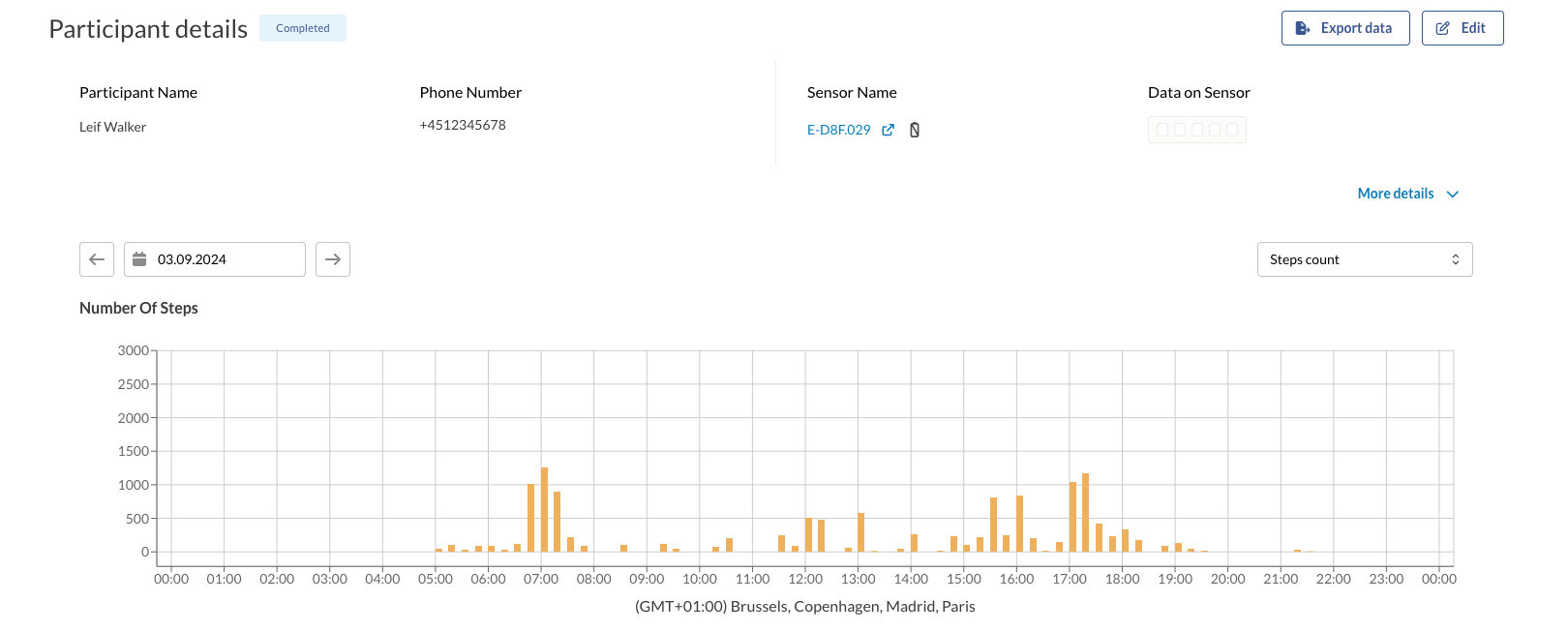
What you need to know: The Steps section provides a detailed view of step count data for participants. This information helps you track participant activity levels and correlate them with other measurement data.
How to use it: Navigate to a participant’s details page and choose the Steps view in the graph dropdown. Here you’ll see step count for each interval in the day.
Overall Improvements#
Streamlined UI#
New Feature: The overall user interface has been streamlined for better usability and a cleaner appearance.
What you need to know: Throughout the application, we’ve made numerous UI improvements including:
- Cleaner layouts with better spacing
- More intuitive button placement
- Improved visual hierarchy
- Enhanced colour schemes for better readability
- Smoother transitions and animations
How to use it: These improvements are visible throughout the application. You’ll notice a more polished and consistent experience across all pages and features.
Security Improvements#
Stricter Password Policies#
New Feature: Administrators can now enforce stricter password policies for enhanced security.
What you need to know: New password policy options allow you to require:
- Longer minimum password lengths
- More complex password requirements (uppercase, lowercase, numbers, special characters)
- Password expiration policies
- Password history requirements to prevent reuse
How to use it: Please contact our support to make sure your project is configured for the correct policies.
Enhanced Country Support#
New Feature: The list of available countries has been expanded.
What you need to know: More countries are now available for selection throughout the application for participant profiles that require phone number for login features.
How to use it: When selecting a country in any form or profile, you’ll see the expanded list of available countries.
Summary#
Version 3.9 brings significant improvements across navigation, sensor monitoring, file management, and security. The reorganised main sections make it easier to find what you need, breadcrumbs improve navigation efficiency, and enhanced sensor information helps you stay on top of battery and memory status. The improved file export workflow and expandable participant tables make daily operations smoother and more efficient.
ActiMotus 2.1 algorithm support enables multi-sensor measurements, while custom questionnaires and diary integration provide more comprehensive data collection options. Security enhancements with stricter password policies and improved two-factor authentication help protect your data, and the streamlined UI creates a more polished user experience throughout the application.